OpenCS IDE extension
The OpenCS IDE extension lets you do Aalto OpenCS programming exercises in your own code editor. You can browse courses, download exercises, write and test your code on your computer, submit it, and see the grading result without switching back to the browser.
The extension works in VSCodium and in Visual Studio Code. Setting it up takes about ten minutes.
The extension is available in courses where the teacher has made it available. If your course is not listed, do the exercises on the OpenCS website as usual.
In the pictures below, the numbered boxes show what to click, in order.
Installing the extension
You can use the extension in either of two editors. They look and work almost the same, but differ in a few ways:
- VSCodium is a free, open-source build of Visual Studio Code. It has no built-in AI features and does not send usage data to Microsoft.
- Visual Studio Code is Microsoft’s version. It has AI features, such as GitHub Copilot, enabled by default, and it sends usage data to Microsoft unless you turn this off.
The extension is installed in the same way in both editors.
Install an editor first
If you are not sure which one to choose and you are still learning, use VSCodium. The AI features of Visual Studio Code, especially GitHub Copilot, can hinder learning if not used carefully.
Install one of the editors first:
-
Download VSCodium from the VSCodium website and follow its installation instructions.
-
Download Visual Studio Code from the Visual Studio Code website and follow its installation instructions.
Search for the OpenCS extension
Once you have installed the editor, open the editor and click the Extensions icon in the left sidebar. The extensions icon looks like four squares, one of which is separated from the others.
Search for OpenCS and select the extension called OpenCS from the publisher Aalto University OpenCS. Other extensions may have similar names, so check the publisher. Then click Install. This is shown in Figure 1 below.

The Extensions view looks the same in both editors.
The rest of this guide shows Visual Studio Code. VSCodium works in the same way, so if you use VSCodium, read VSCodium wherever the guide mentions Visual Studio Code.
Signing in
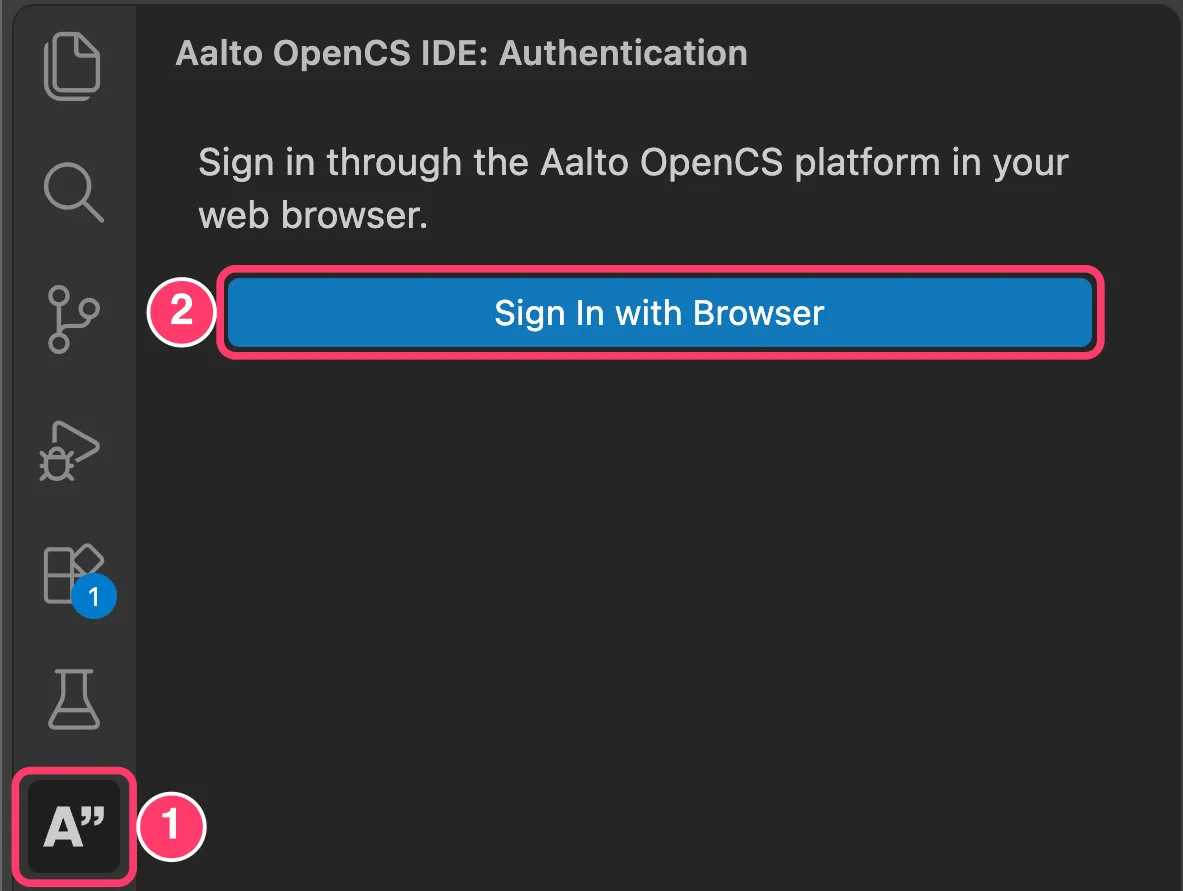
After installation, an OpenCS icon appears in the left sidebar. Click it (1) and choose Sign In with Browser (2).
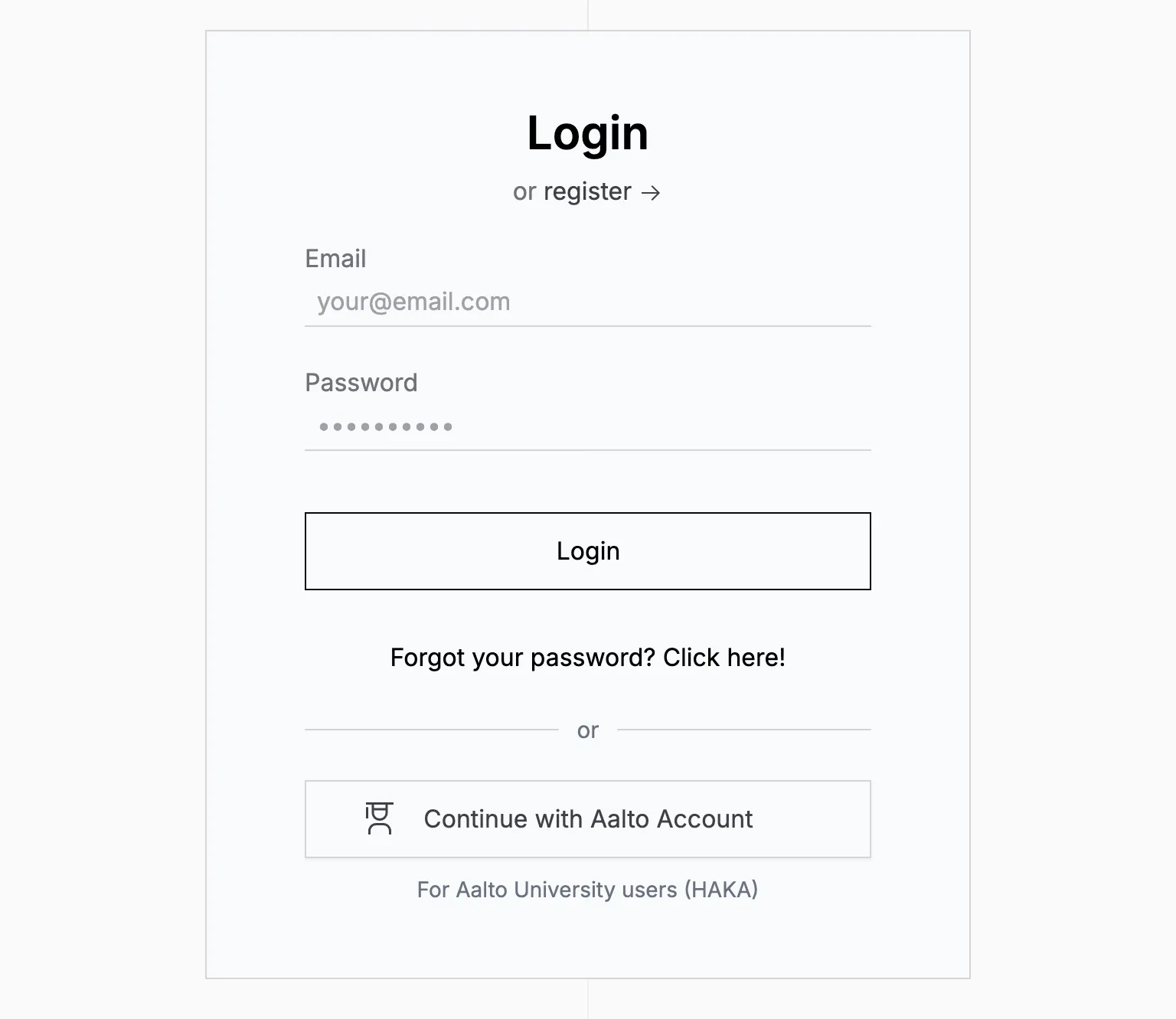
Your browser opens the OpenCS login page. Sign in as you normally do on OpenCS, either with your email and password or with Continue with Aalto Account, if you have an Aalto account.
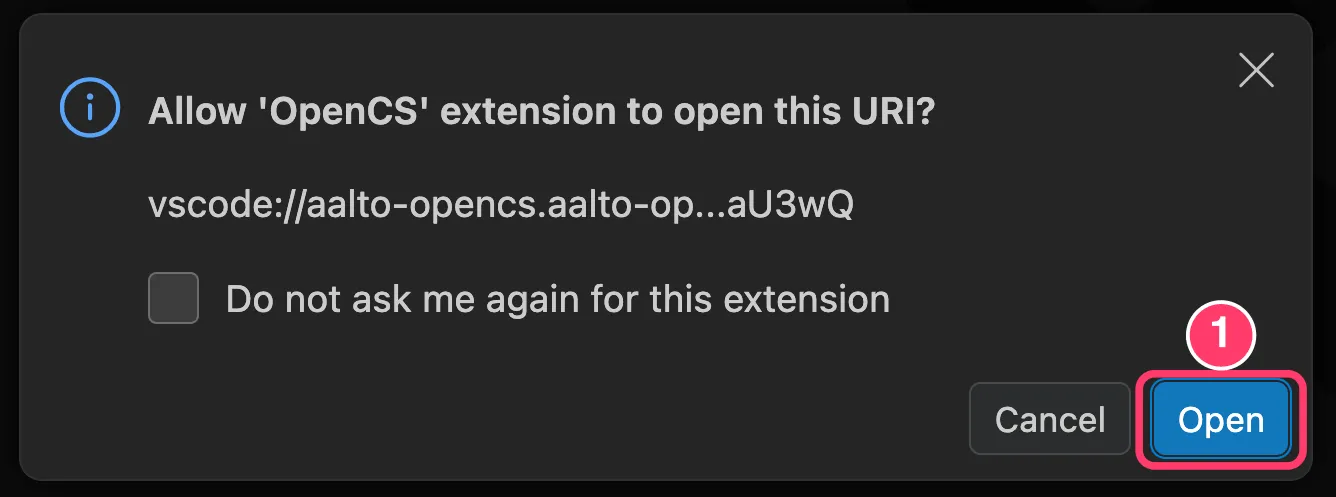
After you sign in, your browser asks whether it may open Visual Studio Code. Allow it. Visual Studio Code then asks whether the OpenCS extension may open the sign-in link. Choose Open (1). If you tick Do not ask me again for this extension, you will not see this question the next time you sign in.
Choosing a folder and a course
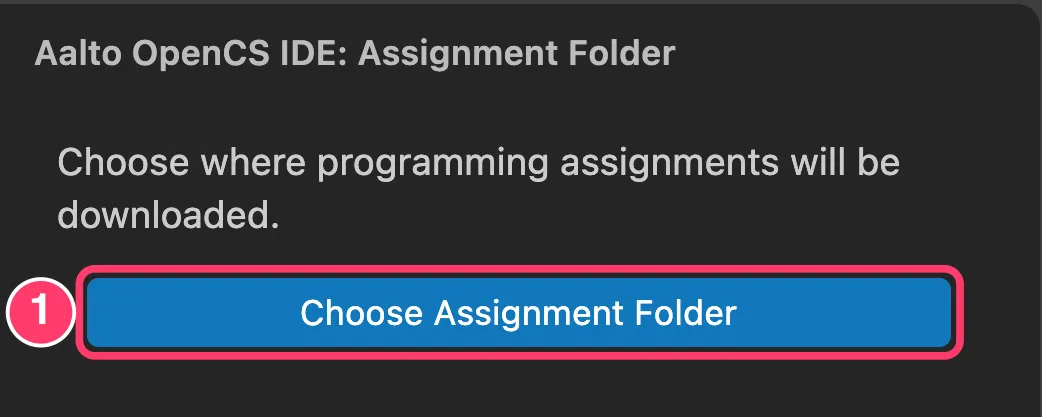
Next, choose Choose Assignment Folder (1) and pick a folder where your exercises will be saved, for example a folder called OpenCS inside your Documents folder. Choose a place you can find again, and avoid temporary locations such as your Downloads folder. The extension creates a separate subfolder for each course and exercise.
Then choose Select Course (1) and pick your course from the list (2).

Finally, pick the version of the course you are taking (1). Usually there is only one, marked Active version.
If you are an Aalto student, double-check that you are taking the correct version of the course. For example, if you are taking a course in the spring semester, pick the spring version, not the autumn version. The correct version is always available in the MyCourses page of the currently running course.

The extension lists only the courses and programming exercises that your teacher has made available in the editor. Other exercises, such as quizzes, are done on the OpenCS website as usual.
Opening an exercise
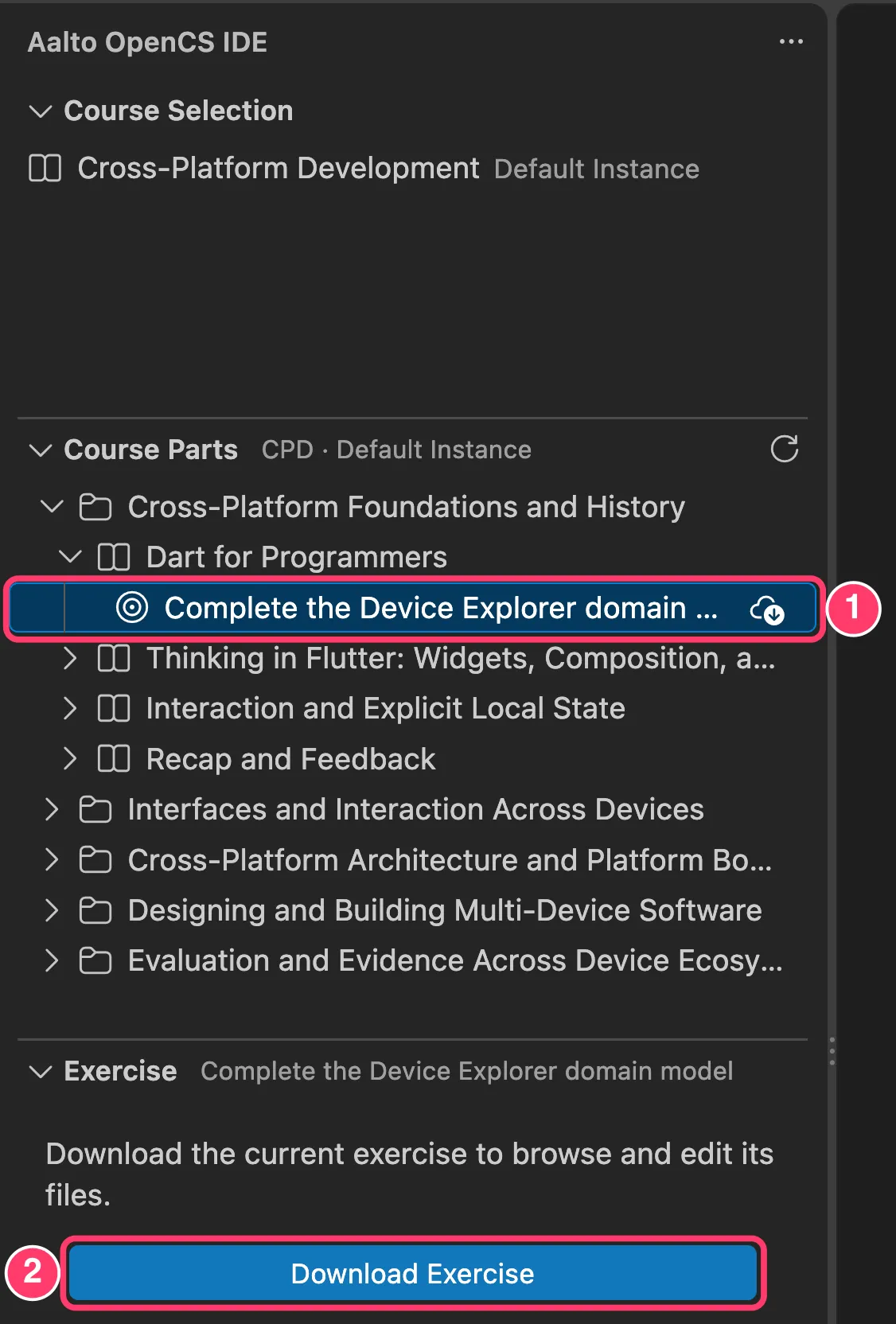
The Course Parts view now lists the parts and chapters of your course. Click an exercise to select it (1), and then choose Download Exercise (2) to download its starter files.
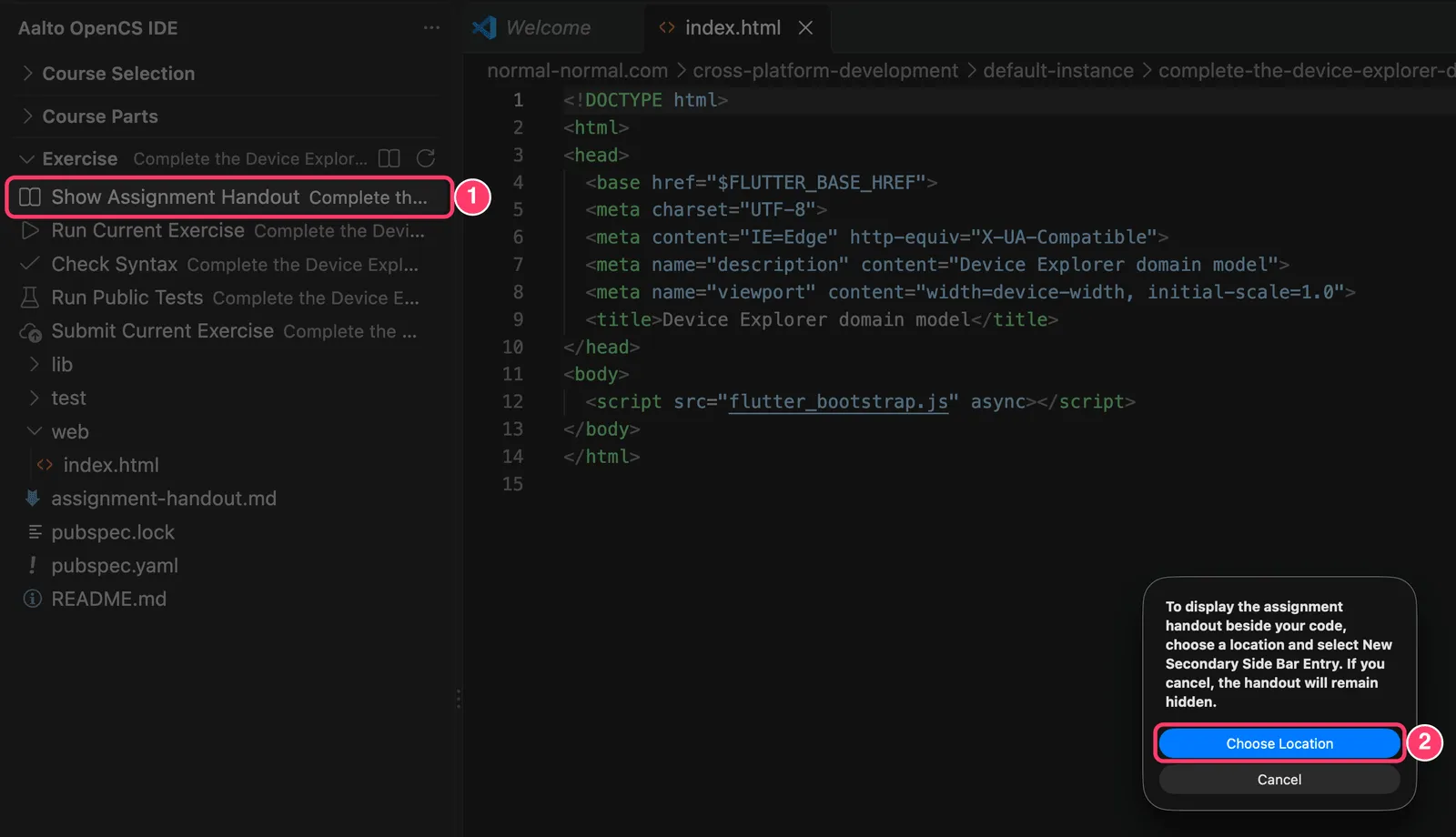
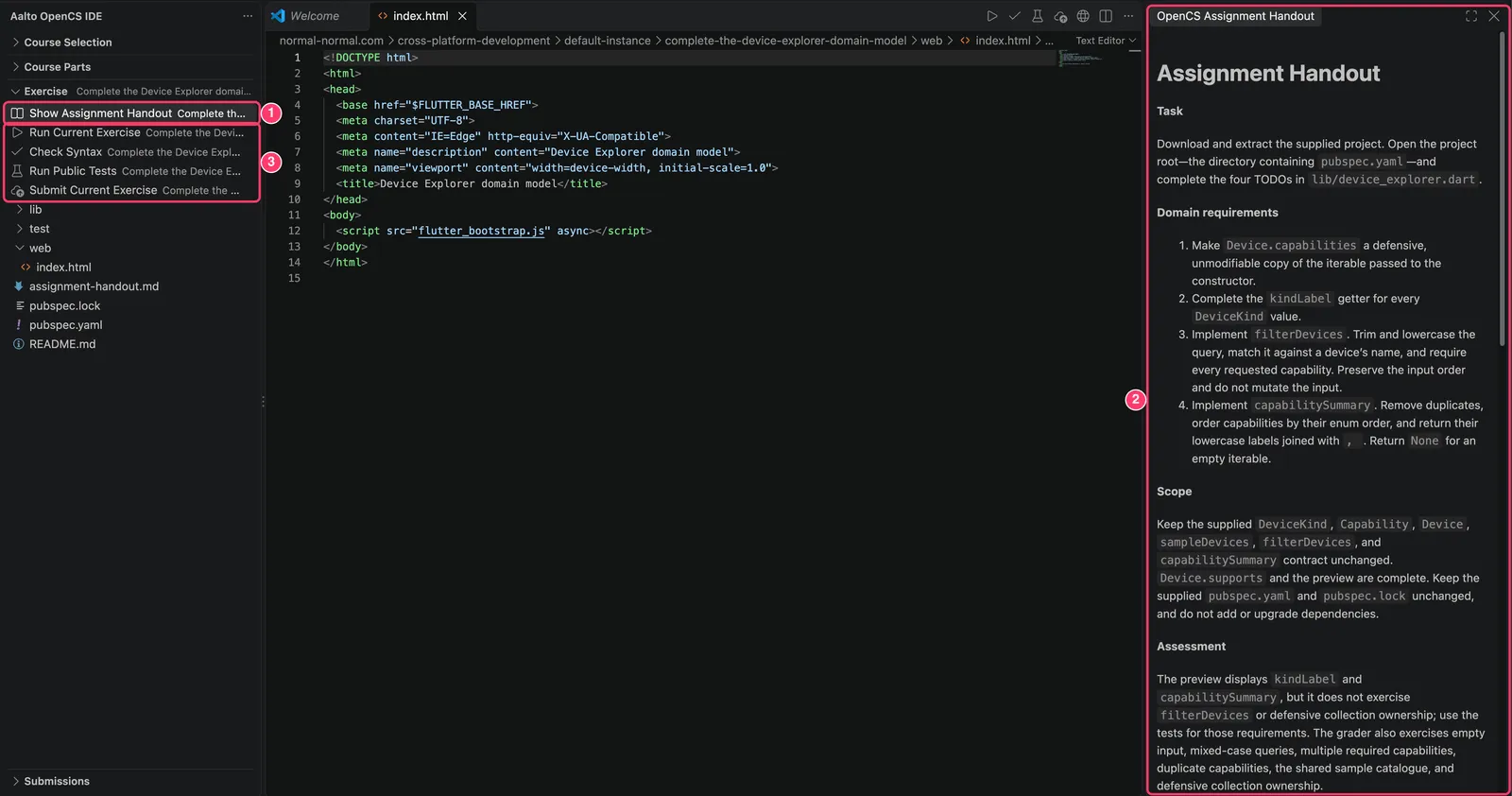
The exercise files now appear in the Exercise view. Choose Show Assignment Handout (1) to read the handout next to your code.
The first time you do this, Visual Studio Code asks where to show the handout. Choose Choose Location (2). If you choose Cancel, the handout stays hidden until you choose Show Assignment Handout again.
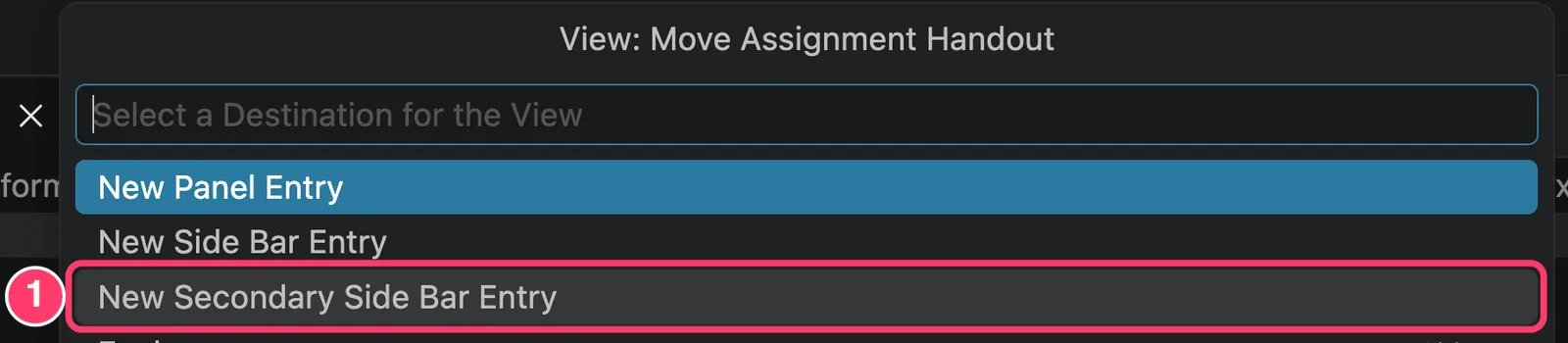
From the list that opens, choose New Secondary Side Bar Entry (1). This puts the handout in a side bar on the right, beside your code.
The handout now appears on the right (2). Visual Studio Code remembers this location, so next time Show Assignment Handout (1) opens it there straight away. Below Show Assignment Handout are the other actions for this exercise (3): running it, checking it, and submitting it.
The downloaded files are ordinary files in your assignment folder, so you can edit them with any tools you like.
Before you start working on a Flutter or Dart exercise, open a terminal in the exercise folder and run flutter pub get (or dart pub get). Until you do, the editor cannot find the libraries the exercise uses and marks much of the code as errors.
Trying out your code
Before submitting, you can try out your solution on your own computer. The Exercise view has these actions:
Run Current Exerciseruns your program in a terminal.Check Syntaxchecks your code for errors without running it.Run Public Testsruns the tests that come with the exercise.
Run Current Exercise and Check Syntax work in Python, Dart, and Flutter exercises. Run Public Tests works only in Dart and Flutter exercises that come with public tests.
These actions run your code with the programming language installed on your own computer. The extension does not install it for you, so install the language your exercise uses before you try them:
- Python exercises: install Python 3. Check that
python3 --version(macOS and Linux) orpy --version(Windows) prints a version starting withPython 3in a terminal. - Flutter and Dart exercises: install Flutter, which also includes Dart. Check that the
flutteranddartcommands work in a terminal.
After installing, restart Visual Studio Code so that it finds the new commands. You can still edit and submit exercises without installing anything, because your submission is graded on the OpenCS platform.
The first time you run or check a Python exercise, the extension looks for Python on your computer and tells you which command it uses.
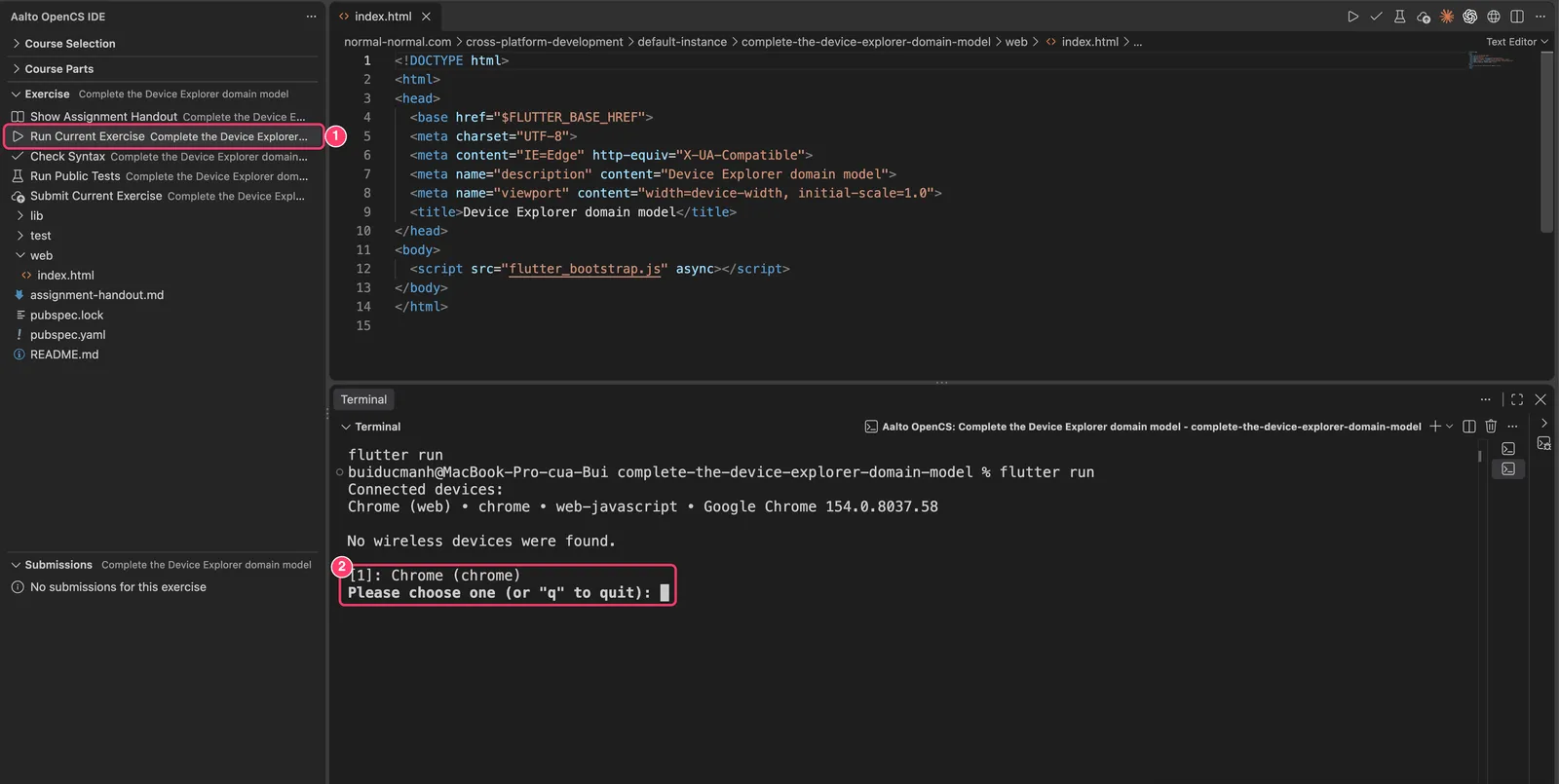
The same actions are also available as icons at the top right of the editor. If Visual Studio Code asks whether you trust the folder, choose to trust it. Otherwise the run actions stay disabled.
Choosing Run Current Exercise (1) opens a terminal at the bottom of the window. In Flutter exercises, the terminal first asks where to run the app (2). Type the number of the device, for example 1 for Chrome, and press Enter.
Passing locally does not guarantee points. Your submission is graded on the OpenCS platform, which may also use tests that you cannot see.
Submitting and reading the result
When your solution is ready, choose Submit Current Exercise (1). The extension shows the list of files that will be uploaded (2). Check the list, and choose Submit (3) to send them. Nothing is uploaded until you choose Submit.
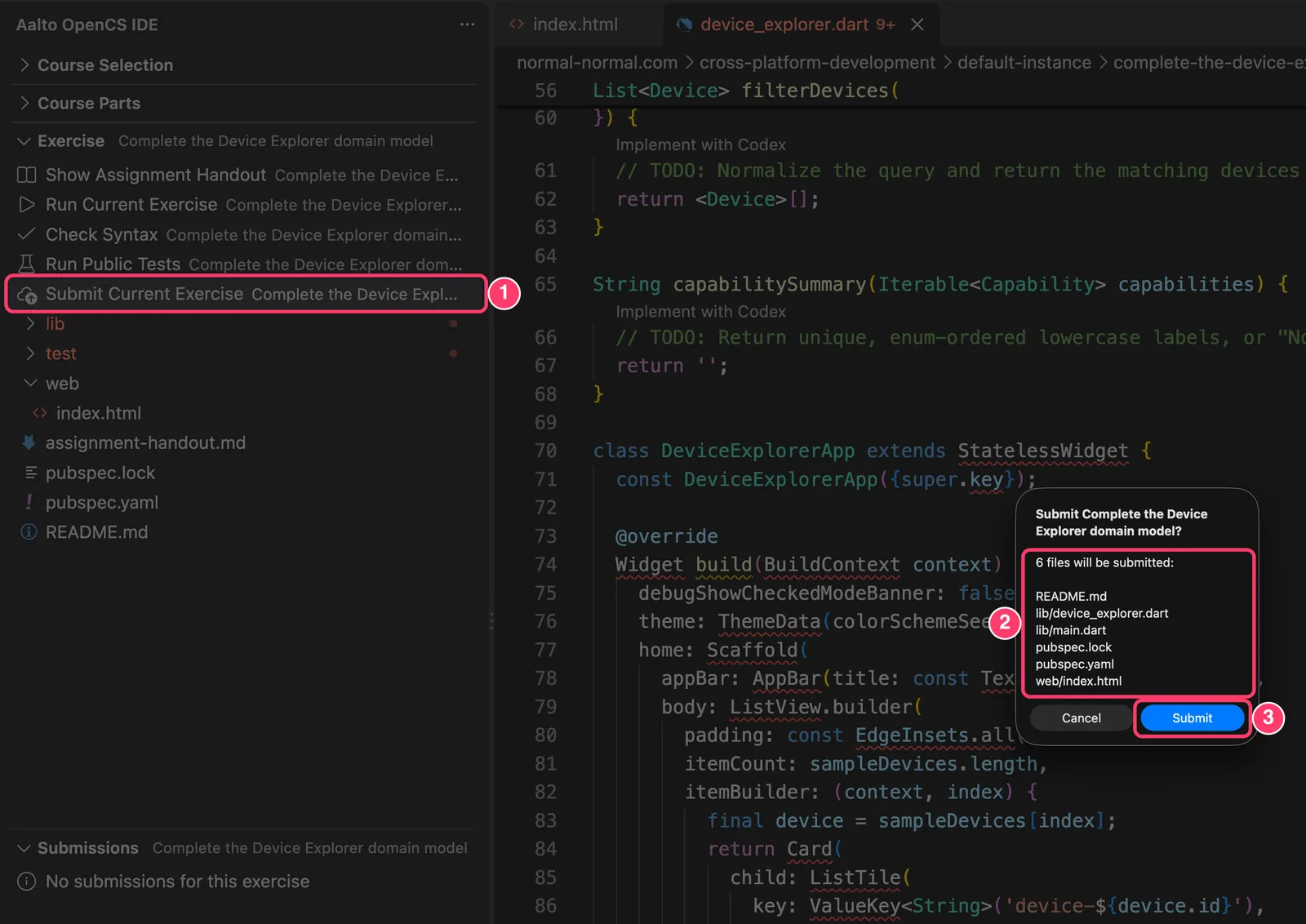
The submission then appears in the Submissions view, and its result appears when grading finishes. If a test fails, expand the submission and open the failed test to see what went wrong. Earlier submissions are listed under Past Submissions.
What the extension sends
Your code stays on your computer until you confirm a submission. When you submit, the extension uploads the files you reviewed. Along with the submission, it also sends a short history of how your code changed each time you ran it, ran public tests, or submitted. This history does not affect your points.
You sign in through the OpenCS website. Your session is stored in the editor’s secure storage, and signing out does not delete your exercise files.
Troubleshooting
Signing in does not return to the editor. Check that the OpenCS website opens in your browser, then choose Sign In with Browser again. Allow the browser to open Visual Studio Code, and choose Open when Visual Studio Code asks.
My course is not listed. Only courses that the teacher has made available in the editor are listed. If your course should be one of them, check on the OpenCS website that you are enrolled and that the course is currently running, then choose Select Course again.
An exercise is missing. Only the programming exercises that the teacher has made available in the editor are listed. Do the other exercises on the OpenCS website.
The run actions are missing or do not work. They are available only in Python, Dart, and Flutter exercises, and only in a folder that Visual Studio Code trusts. If the extension or the terminal says that Python, flutter, or dart is not found, install the language as described in Trying out your code above, and restart Visual Studio Code.
The extension uses the wrong Python. Open the Command Palette with Ctrl+Shift+P (Command+Shift+P on macOS), choose Aalto OpenCS IDE: Select Python Command, and pick the Python you want to use.
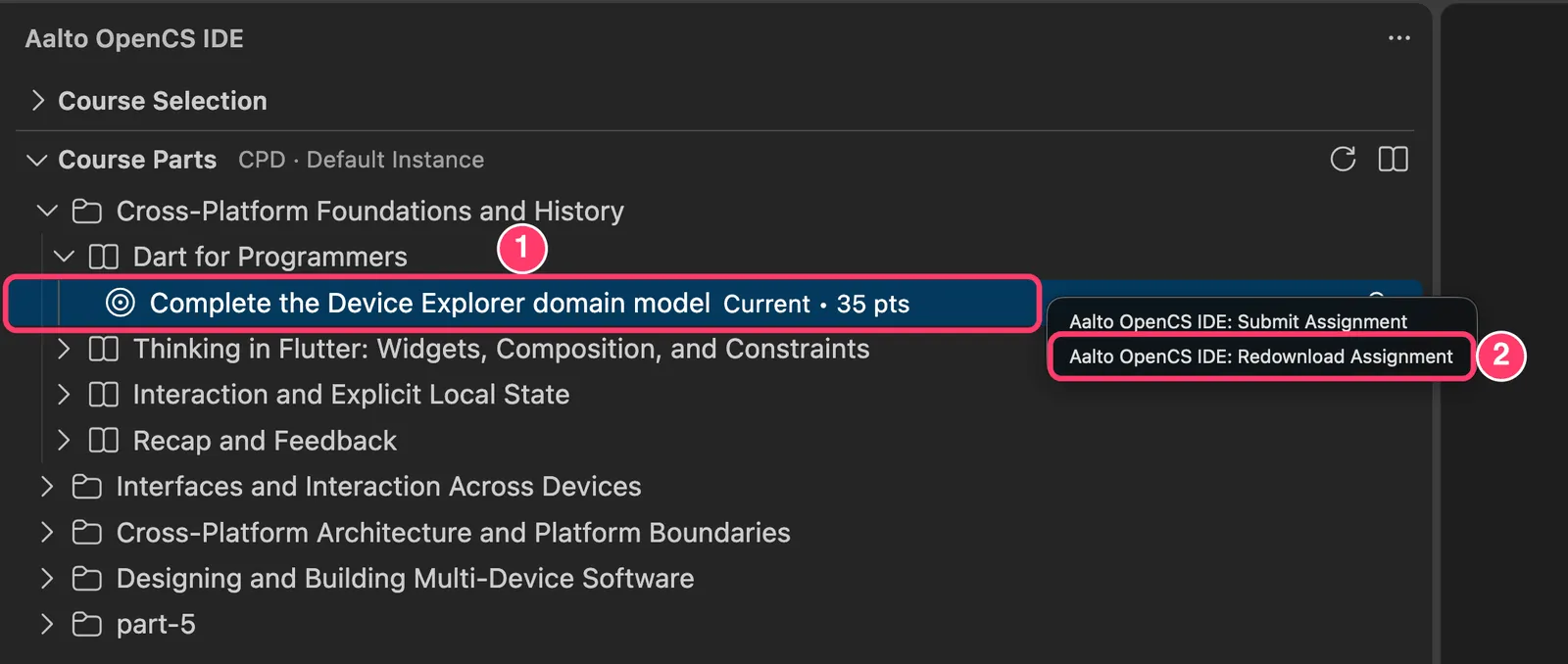
I want to start an exercise over. In Course Parts, right-click the exercise you are working on (1) and choose Aalto OpenCS IDE: Redownload Assignment (2). This replaces your copy of the exercise with fresh starter files and permanently deletes your changes, so the extension asks you to confirm first.