Tracing a Request
Learning Objectives
- You can distinguish loading the browser application from its subsequent API requests.
- You can follow one database value through a repository query, JSON, and browser rendering.
- You can use a request trace to narrow down a failure.
We have seen the saved todo in the database, the API response, and the browser. Now let’s follow the code that connects those observations. We will then trace a practice value of your own and try one temporary mistake to see how it appears in the browser.
You do not need to know Hono or Svelte in detail yet. Follow one step at a time, keeping the running application beside the source files so you can compare the code with what happens.
First inspect the browser request
Start in the browser’s Network panel, then click Load todos. Select the /api/todos request and find its method, URL, response status, and JSON body. Figure 1 shows where to inspect the request headers. The screenshot filters the list to api/todos; clear that filter to see the document and source-file requests too. Your browser’s panel may arrange these details differently.
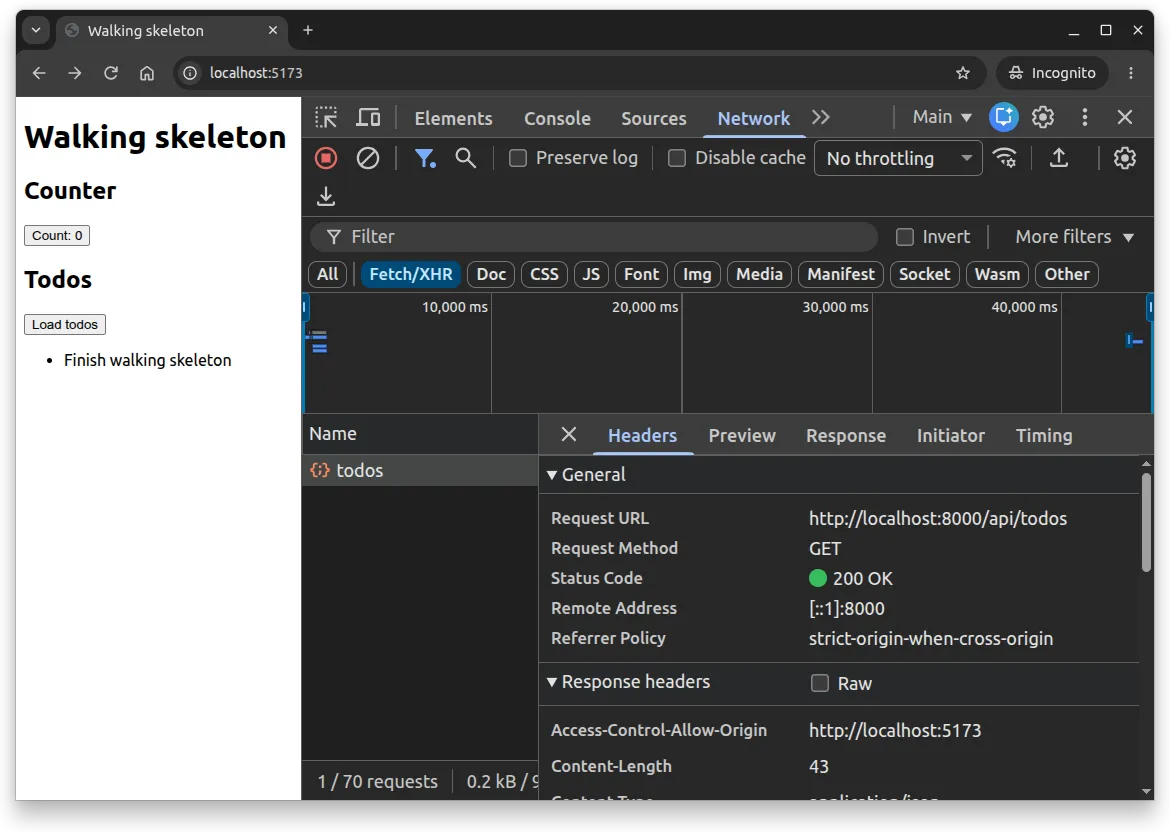
The page was already visible before you clicked the button. The client development server first supplied the browser application; clicking Load todos then sent a separate request directly to Hono. This is why the page can load even if a later request fails.
Open http://localhost:8000/health separately. Its { "status": "ok" } response tells us the health route answered. That route makes no SQL query, whereas the todo route needs to read the migrated database before returning its rows.
Four browser requests
0 / 5 points
A browser’s Network panel shows these requests in order:
GET http://localhost:5173/ document 200GET http://localhost:5173/_app/immutable/entry/start.js script 200GET http://localhost:8100/branch-hours fetch 200GET http://localhost:8100/study-rooms fetch 200Which classification is supported by the request list?
Follow the route to its repository
In api/src/app.ts, find the existing route:
app.get("/api/todos", async (c) => { const todos = await findAll(); return c.json(todos);});Follow its findAll import into api/src/todoRepository.ts:
import { sql } from "./database.ts";
export type Todo = {  id: number;  name: string;};
export const findAll = () =>  sql<Todo[]>`SELECT id, name FROM todos ORDER BY id`;
Reading the two files together, we can see how they divide the work: the handler asks findAll for the todos and forms the HTTP response, while the repository sends the SQL query. PostgreSQL stores the rows and returns the selected columns. The migration creates an INTEGER identity, so these IDs fit the number representation used in this example without an additional cast.
sql comes from database.ts, which reads the configured DATABASE_URL and creates the shared Postgres.js client. Connections open when a query needs them. The request reuses that client; it does not call sql.end(). The listening entry point closes it during application shutdown. In tests, the test group owns cleanup instead. The Postgres.js documentation explains its connection lifecycle.
For our small starting dataset, returning every todo in ID order lets us inspect the rows together. The query has no pagination or limit on response size. Later, when working with larger collections, we will need to limit how much each request reads.
Follow the response into browser state
Open client/src/lib/TodoList.svelte. The Load todos button calls loadTodos. Read its request together with the state declarations and the conditional markup:
| Stage | Component behavior |
|---|---|
| Before the first request | Keeps todos as null and asks the user to load saved items |
| Request pending | Shows Loading todos… and disables the load button |
| Successful nonempty array | Stores the rows and renders their names |
| Successful empty array | Displays No todos yet. |
| Request failure | Displays an alert and allows another attempt |
Notice the difference between the initial null and a successful []: in the first case we have not loaded anything yet; in the second, we asked for the rows and received none. A failed request has its own message. These distinctions help us show the user what happened. Part 2 returns to designing such state models.
The component’s keyed list connects each returned record to its visible text:
<ul> {#each todos as todo (todo.id)} <li>{todo.name}</li> {/each}</ul>Find this excerpt inside the supplied component’s successful, nonempty branch, where todos is an array. The list is already connected to the page: +page.svelte places TodoList in the Todos section, so we can inspect it without adding another copy.
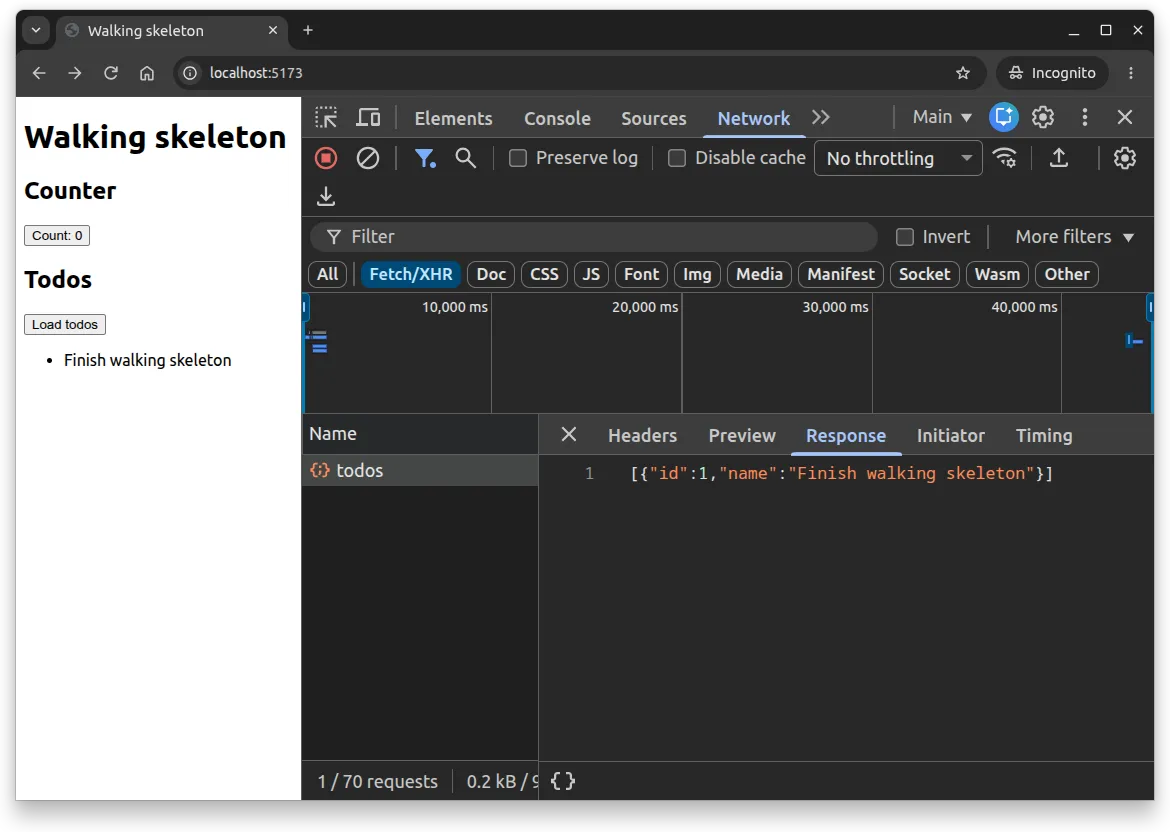
The Todo type helps our tools describe the expected data. The call to response.json() decodes JSON but does not check that the decoded values match that type. Here we are reading our own endpoint; later parts add checks for incoming data. Figure 2 places the returned name beside its rendered text.
Observe a request while it is pending
A local response can arrive too quickly to notice the loading state. In the browser’s Network panel, select a slow network-throttling preset. Before clicking Load todos, predict what will happen to that button and whether the counter will still respond.
Click Load todos. While the request is pending, look for Loading todos…, try the disabled load button, and click the counter. If the counter changes while the todos are loading, you have seen the browser handle another interaction while the component waits for data. Once the response arrives, compare its JSON with the list. Restore No throttling afterward so later observations use the normal connection.
Trace one actual value
Use the database shell command from Chapter 1.6:
SELECT id, name FROM todos ORDER BY id;Compare the stored name with the API response and the page. Figure 3 follows the request and the return journey for that row.
For the seeded row, the name should be Finish walking skeleton in the database, JSON, and page.
We can now describe the name’s journey: PostgreSQL stores it, the repository reads it, Hono returns JSON, the browser decodes the response, and Svelte renders the text. The API handles the database query; the browser sends its request to Hono, not to PostgreSQL or through the SvelteKit development server.
The initial HTML document, CSS, JavaScript modules, and API response are different resources. Part 2’s Internet and HTTP chapter studies those distinctions systematically.
An air-reading data path
0 / 5 points
An air-monitoring database contains location North atrium and temperature 19.4. The repository, API route, and browser use these fragments:
// Repository queryconst findReadings = async () => await sql`  SELECT location, temperature_c AS "temperatureC"  FROM air_readings`;
// API routeapp.get("/air-readings", async (c) => c.json(await findReadings()));
// Browser event handlerconst loadReadings = async () => {  const response = await fetch(apiBase + "/air-readings");  readings = await response.json();};
The page renders each object with {reading.location}: {reading.temperatureC} °C.
Which mapping follows from these fragments?
Follow a value you introduce
Let’s trace a value that you can recognize as your own. Use the practice application from Chapter 1.3, with its services running. We will temporarily add a row to that practice database, leaving 001_create_todos.sql and its demonstration row unchanged.
First click Load todos and increment the counter. Open the database shell using Chapter 1.6’s command. Choose a recognizable practice name of your own in place of the example below, then enter:
INSERT INTO todos (name)VALUES ('My first traced todo')RETURNING id AS practice_id\gset
SELECT id, name FROM todos WHERE id = :practice_id;
Here \gset runs the preceding statement and saves its returned ID in a psql variable called practice_id; it replaces the usual final semicolon. Keep this database-shell session open so the variable remains available for cleanup. Record the returned ID and name from the SELECT result.
Predict each result before trying it:
| Action | Question to investigate |
|---|---|
| Inspect the already-loaded page after the insertion | Has the list changed? Did a new browser request occur? |
Open /api/todos in a separate browser tab | Which ID and name identify your practice row in the response? |
| Click Load todos on the application page | What changes in the response and the rendered list? |
| Reload the application page | What happens to the counter and the todo panel’s loaded state? |
| Click Load todos again | Did reloading the browser remove your stored row? |
Finish in the same database-shell session:
DELETE FROM todos WHERE id = :practice_id RETURNING id, name;Confirm that the deleted ID is the one you recorded. Make another direct API request and click Load todos again: the practice row should be absent, while Finish walking skeleton remains. If you closed the shell, look up your recorded row and ID before deleting it; do not delete all todos to clean up one investigation.
Keep a short trace using your own row’s name and ID: stored row → repository result → JSON → visible list item. Explain why a database change became visible only after a new request. This connects a value you inserted to the JSON and list item it produced. The manual row stays part of this investigation, not a reproducible project seed. In Chapter 1.8, we will see an integration test automate insertion, observation, and cleanup with its own fixture rows.
A small debugging map
| Observation | Inspect next |
|---|---|
No /api/todos request appears after clicking | Button behavior and browser console |
| Request URL is unexpected | Client API-base configuration and path |
/api/todos returns 404 | Route path and the revision loaded by the API watcher |
/api/todos returns 500 | API logs, database availability, and repository query |
| Response JSON is right but text is wrong | Client data assignment and rendering |
| Response JSON has the wrong stored name | Selected database and query result |
If something goes wrong, you can follow the request in stages rather than reread every file at once. The table suggests where to look next. A displayed error tells us the component reported a failure; checking the response and logs helps us find where that failure began.
Inspect a direct API request in the browser, or use curl when available:
curl -i http://localhost:8000/api/todosdocker compose logs --tail=30 apiA direct request removes the page’s rendering code from that particular check. API source edits normally restart the development process through Deno’s watcher; inspect its logs if the observed route does not match the file.
Predict and observe a failure
Temporarily change the request in TodoList.svelte from /api/todos to /api/missing-todos. Before clicking, predict whether a request will appear, which response status is likely, and whether the counter should still work.
Observe the outcome, then restore /api/todos and click again. Here the intended repair is to correct the request path, leaving the API routes unchanged. Record one sentence explaining the initiating change and one explaining the visible consequence. Comparing the failed request with the restored one gives you a recognizable example to use when debugging later.
A stalled air-reading page
0 / 5 points
An air-monitoring page supplies this evidence after a click:
initial document 200GET http://localhost:8100/air-readings 200response JSON [{"location":"North atrium","temperatureC":19.4}]visible page Readings: loadingbrowser console TypeError in loadReadings while assigning response dataWhich boundary is most narrowly implicated, and what should be checked next?
Verify the restored application before testing
Undo the deliberate failure and verify:
GET http://localhost:8000/api/todosreturns status 200 and an array containing Finish walking skeleton.- Clicking Load todos sends that request and renders the row under Todos.
- The original heading, counter, and direct
/healthresponse still work.
If a check fails, use the map above to find the first step that differs from what you expect. Once these checks pass, you have followed a stored value all the way to the page and restored the application after a deliberate mistake. Next, we will read tests that repeat checks on this behavior for us.
Check Your Understanding
- How does loading the application page differ from clicking Load todos?
- Which steps carry a todo’s name from PostgreSQL to the visible list?
- Why does inserting a row in the database not immediately update an already-loaded list?
- What happens to the counter, the loaded list, and the stored rows when you reload the page?
- If the API response is correct but the visible text is wrong, where would you investigate next?
- Why should an investigation remove only the practice row it created?