Tailwind CSS and Skeleton
Learning Objectives
- You know of the existence of CSS frameworks and component libraries.
- You can set up Tailwind CSS and Skeleton in a Svelte project.
In contemporary web development, it is becoming increasingly rare to create styles from scratch — most developers rely on CSS libraries and frameworks.
A CSS framework is a collection of CSS files that contain predefined CSS rules and styling for common elements. There are many CSS frameworks available. One of the more popular ones is Tailwind CSS, which provides utility classes for styling elements.
CSS frameworks can be used jointly with component libraries and UI toolkits, which come with collections of components (or styles for defining components) that are used when building the website. One such component library is Skeleton, which builds on top of Tailwind CSS.
Here, we describe setting up Tailwind CSS and Skeleton. Addng Tailwind CSS has been adapted from Tailwind CSS SvelteKit guide, while the part on adding Skeleton has been adapted from Skeleton SvelteKit guide.
Adding Tailwind CSS
To install Tailwind CSS to the walking skeleton, go to the folder client and run the following command.
deno install npm:tailwindcss@4.1.16 npm:@tailwindcss/vite@4.1.16This installs Tailwind CSS and a Vite preprocessor for Tailwind to the project, setting the version to 4.1.16. Next, modify the vite.config.js file in the client folder to match the following.
import { sveltekit } from "@sveltejs/kit/vite";import { defineConfig } from "vite";import tailwindcss from "@tailwindcss/vite";
export default defineConfig({  plugins: [tailwindcss(), sveltekit()],});
This change adds the Tailwind CSS plugin to the Vite configuration.
Almost ready! Now, create a file called app.css to the client/src folder. Place the following content to the file.
@import "tailwindcss";Then, modify the +layout.svelte file in the client/src/routes folder to import the app.css file and render the children prop. If you have had other content in the file, you can remove or comment it.
Later, once the setup is done, you can add other content back to the file as needed.
Modify +layout.svelte to match the following.
<script>  import "../app.css";  let { children } = $props();</script>
<main>  {@render children()}</main>
Finally, modify the file +page.svelte in the client/src/routes folder to match the following.
<script>  let count = $state(0);</script>
<h1>Hello world!</h1><p>Count: {count}</p><button onclick={() => count++}>increment</button>
Now, when you restart the application with docker compose up --build, or alternatively run the command deno run dev in the client folder, the application should look somewhat similar to the one shown in Figure 1.
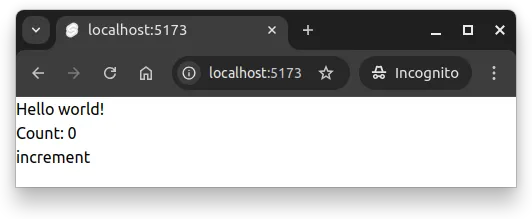
In Figure 1, even through we have a heading element, a paragraph, and a button, they all look like normal text. This is because Tailwind CSS removes the default styling of the elements.
Tailwind forms plugin
Tailwind has a forms plugin, which we want to have in the project as well. To add it, run the following command in the client folder.
deno install --dev npm:@tailwindcss/forms@0.5.10Then, modify the client/src/app.css to match the following (i.e., importing the plugin).
@import "tailwindcss";@plugin "@tailwindcss/forms";Now, modify the +page.svelte file to match the following.
<form class="max-w-sm mx-auto mt-6">  <h2 class="text-2xl mb-4">Add a book</h2>
  <div class="mb-4">    <label>      Title      <input        id="title"        name="title"        type="text"        placeholder="Book title"        class="w-full"      />    </label>  </div>
  <div class="mb-4">    <label>      Description      <textarea        id="description"        name="description"        placeholder="Enter book description"        class="w-full"      ></textarea>    </label>  </div>
  <div class="mb-4">    <label>      Published at      <input id="published_at" name="published_at" type="date" class="w-full" />    </label>  </div>
  <div class="mb-4">    <label>      Page count      <input id="page_count" name="page_count" type="number" class="w-full" />    </label>  </div>
  <input    type="submit"    value="Add Book"    class="w-full bg-blue-600 text-white p-2 rounded-lg hover:bg-blue-700"  /></form>
Once the changes are in place, save the files, and restart the application. The page should look similar to the one shown in Figure 2.
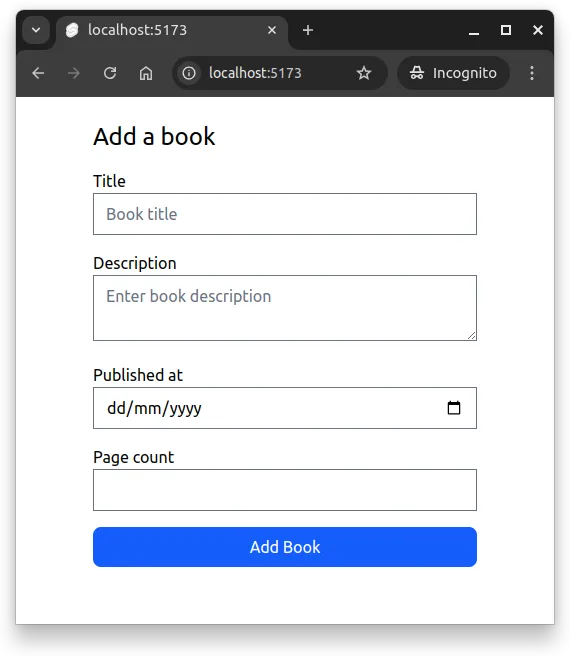
The above example uses utility classes from Tailwind CSS. Utility classes are predefined style classes that can be used to style elements directly in the HTML markup.
As an example, the utility class
p-2adds padding of size2to the element; in Tailwind, each padding unit is equal to0.25rem, andp-2translates to adding0.5rempadding to the element.
Adding Skeleton
To add Skeleton to the project, go to the client folder again, and run the following command.
deno install --dev npm:@skeletonlabs/skeleton@4.2.1 npm:@skeletonlabs/skeleton-svelte@4.2.1The command adds Skeleton’s version 4.2.1 to the project. Next, modify the client/src/app.css file to match the following.
@import "tailwindcss";@plugin "@tailwindcss/forms";
@import "@skeletonlabs/skeleton";@import "@skeletonlabs/skeleton-svelte";@import "@skeletonlabs/skeleton/themes/cerberus";
This brings in Skeleton’s styling and a theme to the project. Above, we have imported a theme called “cerberus” from Skeleton.
Themes are listed at https://www.skeleton.dev/docs/design/themes.
Then, modify the app.html file in the client/src folder to match the following.
<!doctype html><html lang="en" data-theme="cerberus"> <head> <meta charset="utf-8" /> <link rel="icon" href="%sveltekit.assets%/favicon.png" /> <meta name="viewport" content="width=device-width, initial-scale=1" /> %sveltekit.head% </head> <body data-sveltekit-preload-data="hover"> <div style="display: contents">%sveltekit.body%</div> </body></html>The above change adds the data-theme attribute with the value “cerberus” to the html element, setting the theme of the application to the “cerberus” theme from Skeleton.
Now, modify the client/src/routes/+page.svelte file to match the following.
<form class="mx-auto w-full max-w-md space-y-4">  <h2 class="h2">Add a book</h2>
  <label class="label">    <span class="label-text">Title</span>    <input      id="title"      name="title"      type="text"      placeholder="Book title"      class="input"    />  </label>
  <label class="label">    <span class="label-text">Description</span>    <textarea      id="description"      name="description"      placeholder="Enter book description"      class="textarea"    ></textarea>  </label>
  <label class="label">    <span class="label-text">Published at</span>    <input id="published_at" name="published_at" type="date" class="input" />  </label>
  <label class="label">    <span class="label-text">Page count</span>    <input id="page_count" name="page_count" type="number" class="input" />  </label>
  <input type="submit" value="Add Book" class="btn preset-filled-primary-500" /></form>
After restarting the application, the form should look similar to the one shown in Figure 3.
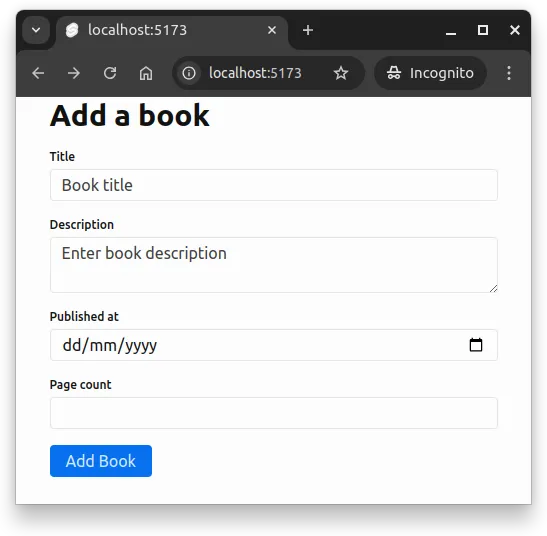
Now, we have both Tailwind CSS and Skeleton set up in the project.
Summary
In summary:
- CSS frameworks and component libraries help in styling web applications.
- Tailwind CSS is a popular CSS framework that provides utility classes for styling.
- Skeleton is a component library that builds on top of Tailwind CSS.
- Setting up Tailwind CSS and Skeleton involves installing the necessary packages and creating/modifying configuration and style files.
Client-side project with styling configuration
0 / 30 points
Follow the example on this page, and add Tailwind CSS and Skeleton to your Walking Skeleton.
Once you have added Tailwind CSS to your Walking Skeleton and the styles work on your computer locally similar to shown here, zip the contents of the client/src folder and upload the zip here.
The contents of the zip should be at least as follows — additional files are allowed (and should exist at this point):
.├── lib│ └── index.js├── routes| ├── +layout.svelte│ └── +page.svelte├── app.css└── app.htmlNote! When zipping the folder, do not zip the folder itself, but the contents of the folder.
By returning the zip, you indicate that you have created a project that has Tailwind CSS and Skeleton following the instructions in these materials and that it works on your computer locally. If the styling does not work on your computer locally, do not return it. Instead, ask for help through the course support channels.