Responsive Web Design
Learning Objectives
- You understand the concept of responsive web design.
- You know how Tailwind’s responsive utilities work.
- You can build layouts that adapt to different screen sizes using Tailwind.
Responsive Web Design
The term Responsive Web Design was coined by Ethan Marcotte, who outlined techniques that allow web pages to adapt to different screen sizes and orientations. The goal is to provide a good user experience whether someone visits your site on a phone, tablet, or desktop computer.
This differs from adaptive design, which focuses on creating separate fixed layouts for specific screen sizes. While adaptive design was common in the early mobile era, responsive design has become the standard approach.
Responsive design uses CSS to create flexible layouts that adjust based on available space. Under the hood, responsive design relies on media queries and container queries — CSS rules that apply styles based on device characteristics like screen width for media queries, or the size of a parent container for container queries.
A basic media query that applies a light gray background when the viewport width is 480 pixels or less might look like this:
@media (max-width: 480px) { body { background-color: lightgray; }}You can try it in the following HTML view — if you make the window narrower than 480 pixels, the background turns light gray.
<!DOCTYPE html><html><head> <title>Button</title> <style> @media (max-width: 480px) { body { background-color: lightgray; } } </style> <script> // Trickery to display the current width const updateWidth = () => { document.getElementById("width").textContent = window.innerWidth; } window.addEventListener("resize", updateWidth); window.addEventListener("load", updateWidth); </script></head><body> <p>Current width: <span id="width"></span> pixels.</p></body></html>Responsive web design
0 / 5 points
What is the goal of responsive web design?
Tailwind’s responsive utility classes
Tailwind CSS abstracts away the need to write media queries directly. Instead, you use responsive utility classes that automatically apply at different screen sizes. This makes responsive design faster and more consistent.
In Tailwind, unprefixed utilities apply at all screen sizes. Prefixed utilities (like md: or lg:) only apply at that breakpoint and above. For example:
text-center— centers text on all screen sizesmd:text-left— aligns text left on medium screens and abovelg:text-xl— increases font size on large screens and above
Tailwind responsive utility prefixes
0 / 5 points
How do prefixed utilities (like md: or lg:) work in Tailwind CSS?
Tailwind’s default breakpoints are:
sm: 640pxmd: 768pxlg: 1024pxxl: 1280px2xl: 1536px
As an example, md:p-4 applies padding of 4 (1rem) on screens 768px wide and larger, while smaller screens receive no padding from that class. Similarly, using p-2 md:p-4 applies padding of 2 (0.5rem) on small screens and 4 (1rem) on medium screens and above.
Making elements responsive
Let’s start with a simple example. Modify your +page.svelte file to match the following:
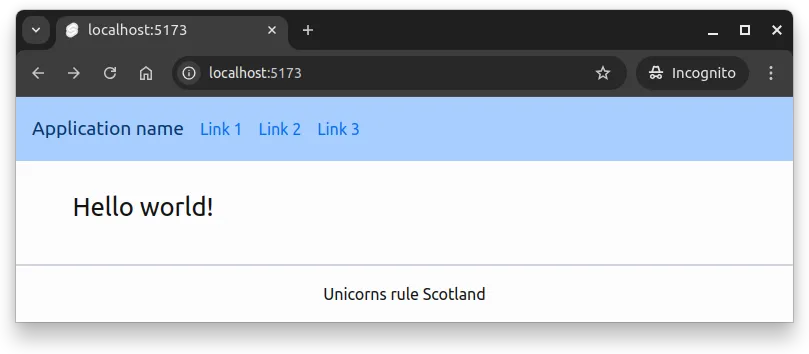
<h1 class="p-1 text-xl md:text-2xl lg:text-4xl">Hello world!</h1>On all screen sizes, the heading has padding of p-1. The text size changes based on screen width; on small screens, it’s text-xl, on medium screens it becomes text-2xl, and on large screens it grows to text-4xl.
This demonstrates responsive typography, where text size adapts to the available screen space for better readability.
When you run the application locally and adjust the size of the window, you’ll see the text size change accordingly. As an example, in Figure 1 below, the width of the screen is over 768 pixels, so the md:text-2xl class is applied.
md:text-2xl class is applied.When building responsive designs, test them at different screen sizes. Most browsers include developer tools with device simulation: (1) Open your browser’s developer tools (usually F12), (2) Enable device/responsive mode, and (3) Test various screen sizes and devices.
You may also just resize your browser window manually to see how your layout responds. When testing the layout, look for text that is readable, elements that are well spaced, and that no content is cut off or overlapping.
Responsive fonts
0 / 10 points
The HTML page has a single text paragraph. Modify the text paragraph so that the font size is responsive. Use the following sizing:
- Base size:
text-sm - Medium screens and above:
text-base - Large screens and above:
text-lg
Responsive layout patterns
Stacking and unstacking
One of the most common responsive patterns is stacking elements vertically on mobile and arranging them horizontally on larger screens. With Tailwind’s flexbox utilities, this is straightforward:
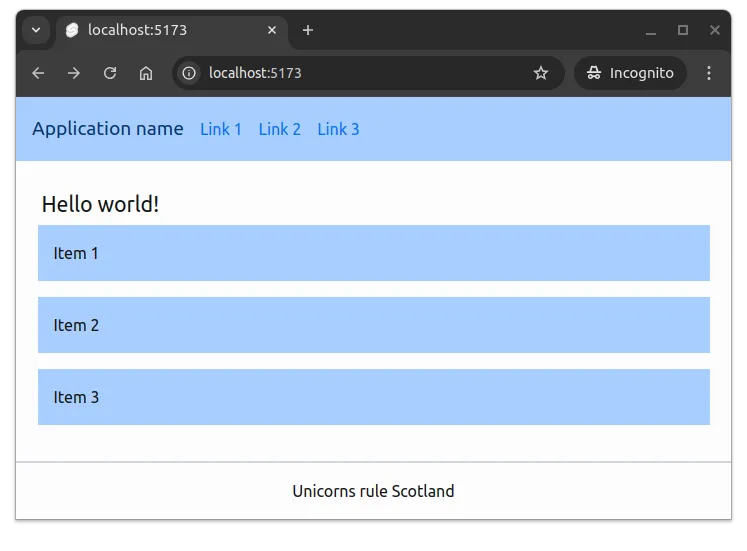
<div class="flex flex-col md:flex-row gap-4"> <div class="bg-primary-100 p-4">Item 1</div> <div class="bg-primary-100 p-4">Item 2</div> <div class="bg-primary-100 p-4">Item 3</div></div>On mobile, flex-col stacks items vertically. On medium screens and above, md:flex-row arranges them horizontally. The gap-4 utility adds consistent spacing in both layouts. Figure 2 below shows what the layout looks like on a small screen, when the list has is below the title.
flex-col class is applied and the items are stacked vertically.Stacking and unstacking pattern
0 / 5 points
What does the class combination “flex flex-col md:flex-row” do?
Responsive grid columns
Grid layouts naturally adapt to different screen sizes. You can specify different column counts at different breakpoints:
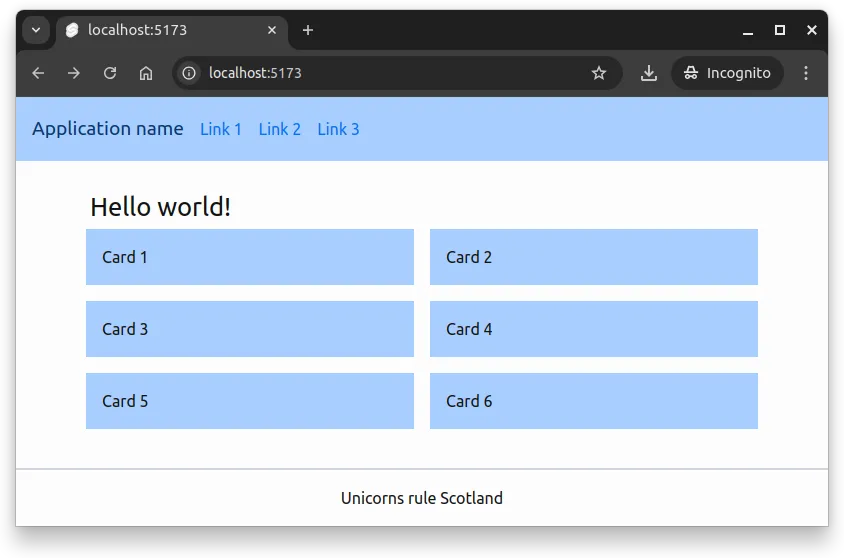
<div class="grid grid-cols-1 md:grid-cols-2 lg:grid-cols-3 gap-4"> <div class="bg-primary-100 p-4">Card 1</div> <div class="bg-primary-100 p-4">Card 2</div> <div class="bg-primary-100 p-4">Card 3</div> <div class="bg-primary-100 p-4">Card 4</div> <div class="bg-primary-100 p-4">Card 5</div> <div class="bg-primary-100 p-4">Card 6</div></div>This creates one column on mobile, two columns on tablets, and three columns on desktops. As you resize your browser, you’ll see the layout adjust automatically. Figure 3 below shows what the layout looks like on a medium screen, when the list has two columns.
md:grid-cols-2 class applies and the grid has two columns.Responsive grid columns
0 / 5 points
Using the classes “grid grid-cols-1 md:grid-cols-2 lg:grid-cols-3”, how many columns will display on a tablet with a screen width of 1100 pixels?
Showing and hiding elements
Sometimes you want to show or hide elements based on screen size. Tailwind provides hidden and responsive display utilities:
<nav>  <!-- Mobile menu button - only shown on small screens -->  <button class="md:hidden">Menu</button>
  <!-- Full navigation - hidden on small screens -->  <ul class="hidden md:flex gap-4">    <li><a href="#">Home</a></li>    <li><a href="#">About</a></li>    <li><a href="#">Contact</a></li>  </ul></nav>
The button appears only on small screens (thanks to md:hidden). The navigation list is hidden on small screens (hidden) but displays as a flex container on medium screens and above (md:flex).
Showing and hiding elements responsively
0 / 5 points
What does the class combination “hidden lg:flex” accomplish?
Making our layout responsive
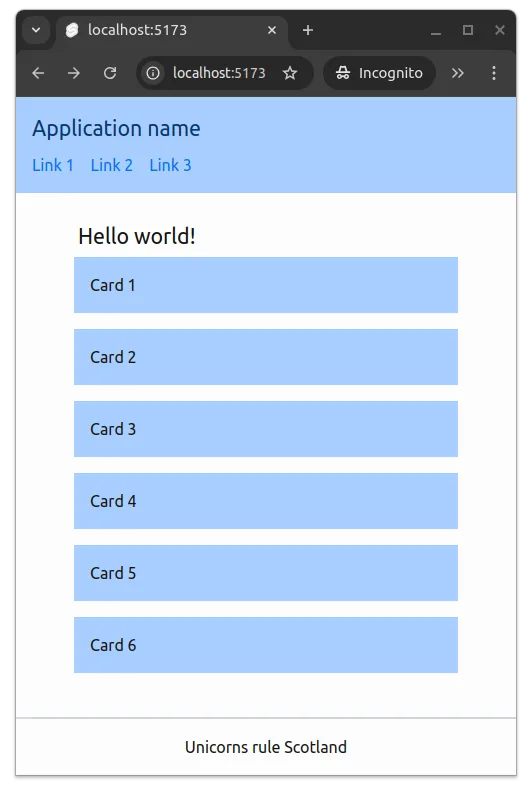
Let’s revisit the header from the previous chapter and make it responsive. Currently, the title and navigation sit side by side, which doesn’t work well on small screens.
Here’s our starting point:
<header class="flex items-center bg-primary-100 p-4 mb-6"> <h1 class="text-xl text-primary-900">Application name</h1> <nav class="ml-4"> <ul class="flex space-x-4"> <li><a class="anchor" href="#">Link 1</a></li> <li><a class="anchor" href="#">Link 2</a></li> <li><a class="anchor" href="#">Link 3</a></li> </ul> </nav></header>On mobile, we want the navigation below the title. On larger screens, we want them side by side. We can accomplish this by making the header flex direction responsive:
<header class="flex flex-col sm:flex-row sm:items-center bg-primary-100 p-4 mb-6"> <span class="text-xl text-primary-900">Application name</span> <nav class="mt-2 sm:mt-0 sm:ml-4"> <ul class="flex space-x-4"> <li><a class="anchor" href="#">Link 1</a></li> <li><a class="anchor" href="#">Link 2</a></li> <li><a class="anchor" href="#">Link 3</a></li> </ul> </nav></header>The changes:
flex-colstacks items vertically on mobilesm:flex-rowarranges items horizontally on small screens and abovesm:items-centercenters items vertically, but only on small screens and abovemt-2adds top margin to the nav on mobilesm:mt-0 sm:ml-4removes top margin and adds left margin on small and above
We might also want to adjust the main content width for different screen sizes:
<main class="container mx-auto max-w-sm md:max-w-2xl lg:max-w-4xl grow"> {@render children()}</main>This gives us a smaller maximum width on mobile (max-w-sm), a medium width on tablets (md:max-w-2xl), and a larger width on desktops (lg:max-w-4xl).
Now, when the application is viewed on a small screen, the header elements stack vertically, and the main content is sized for readability. This is shown in Figure 4 below.
Responsive card gallery
0 / 20 points
In this exercise, you’ll create a responsive card gallery that adapts across devices. The layout will display cards in a grid that shows 1 column on mobile phones, 2 columns on tablets, and 3 columns on desktop screens. One of the cards will also have content that is only visible on mobile devices.
First, start by making the container (the outermost div element) a grid layout with grid, then add the responsive column classes to it: grid-cols-1 for mobile, md:grid-cols-2 for medium screens, and lg:grid-cols-3 for large screens. Add spacing between the cards by adding gap-2 to the outer container.
Then, style each of the three cards (the inner div elements) so that they have a light gray background (bg-gray-200) and padding that increases with screen size: p-2 on mobile, p-4 on devices with at least 768px width (medium screens), and p-6 on devices with at least 1024px width (large screens). Make the cards rounded by adding rounded-md.
Finally, the first card has a span element with “Mobile Only” inside the text paragraph. Style the element so that it only appears on small screens (screens below 768px), and make it’s background blue (bg-blue-500), text white, add a small amount of padding (p-2), and make the element rounded (rounded-lg)
Summary
In summary:
- Responsive web design focuses on creating user interfaces that adapt to different screen sizes and orientations.
- Tailwind CSS provides responsive utility classes that allow changing styles based on breakpoints without writing media queries directly.
- Common responsive patterns include stacking/unstacking elements, adjusting grid columns, and showing/hiding content based on screen size.
Responsive header for todo application
0 / 15 points
In this exercise, you continue from the “Styled layout for todo application” exercise where you created a styled layout for the todo application. Your task is to make the header of the todo application responsive so that it adapts better to different screen sizes.
Currently, the header in your todo application displays authentication information (user email and logout button, or login/register links). While functional, the header lacks structure and doesn’t adapt well to mobile screens.
Requirements
1. Add application title
Add an application title to the header before the authentication elements. The title should:
- Be wrapped in a
<span>element with classes:text-lg,md:text-xl,text-primary-900 - Contain the text: “Todo App”
- Have a bottom margin on mobile only:
mb-2,sm:mb-0
2. Make header direction responsive
Modify the header to stack vertically on mobile and arrange horizontally on small screens and above:
- Change
flextoflex flex-col sm:flex-row - Keep
items-centerbut make it apply only on small screens and above:sm:items-center - Keep the existing classes:
bg-primary-100,p-4,mb-6
3. Add responsive spacing for authentication section
Wrap the authentication content (the {#if authState.user} block) in a <div> with responsive margin classes:
- No left margin on mobile (default)
- Left margin on small screens and above:
sm:ml-4 - The div should have class:
sm:ml-4
4. Style the authentication elements
For the logged-in state:
- The inner
<div>should have classes:flex,flex-col,sm:flex-row,sm:items-center,gap-2 - The logout button should have classes:
btn,btn-sm,variant-filled-secondary
For the logged-out state:
- The
<ul>should have classes:flex,flex-col,sm:flex-row,gap-2,sm:gap-4 - Each
<a>link should have class:anchor
Expected behavior
On mobile screens (< 640px):
- The title “Todo App” appears at the top
- Authentication elements appear below the title
- Login/register links or user info stack vertically
On small screens and above (>= 640px):
- The title and authentication elements are on the same line
- Login/register links or user info are arranged horizontally
- Elements are vertically centered
Example structure
Your header should follow this pattern:
<header class="...responsive classes..."> <span class="...title classes...">Todo App</span> <div class="sm:ml-4"> <!-- Authentication content here --> </div></header>Submission format
Once ready, test your application at different screen sizes using your browser’s developer tools. Verify that the header stacks properly on mobile and arranges horizontally on larger screens. When you observe that it works, zip the contents of the folder client/src and return the zip here.